
Microsoft has recently released emergency out-of-band updates for Windows 11, and unlike normal monthly patches, these updates are urgent and highly recommended.
These fixes were rushed out after a recent Windows security update caused serious system-level problems, affecting both home users and businesses worldwide.
Let’s break down what went wrong, why these updates are critical, and who should install them immediately.

What Triggered These Emergency Windows 11 Updates?
In mid-January, Microsoft pushed a regular security update for Windows 11. Shortly after, users began reporting major system issues, including:
-
PCs failing to shut down properly
-
Systems restarting instead of powering off
-
Devices getting stuck in hibernation or hybrid shutdown states
-
Remote Desktop connections randomly failing or disconnecting
These are not cosmetic bugs. They affect core operating system functions, which is why Microsoft classified the fixes as emergency updates.
The Most Serious Problems Explained
1. PCs Would Not Shut Down Correctly
Many affected systems were unable to perform a proper shutdown. Instead of turning off, PCs would:
-
Restart automatically
-
Remain partially powered on
-
Enter broken hibernation states
Over time, this can lead to:
-
System instability
-
Increased power usage
-
Possible file system corruption
2. Remote Desktop Was Broken
Another critical issue impacted Remote Desktop Protocol (RDP) connections.
Users reported:
-
Failed remote logins
-
Dropped connections
-
Authentication errors when connecting to servers or cloud PCs
This problem was especially serious for:
-
IT administrators
-
Remote workers
-
Businesses relying on remote access
Why These Updates Are Called “Emergency” (Out-of-Band)
Normally, Microsoft releases fixes during Patch Tuesday, once per month.
However, in this case, Microsoft released out-of-band updates, meaning:
-
The fixes were released outside the normal schedule
-
They target specific critical issues
-
They are meant to be installed as soon as possible
Microsoft only does this when a problem:
-
Affects many users
-
Breaks essential system functionality
-
Cannot wait until the next update cycle


Affected Windows Versions and KB Updates
These emergency patches apply to:
-
Windows 11 25H2 / 24H2 – KB5077744
-
Windows 11 23H2 – KB5077797
-
Windows Server 2025 – KB5077793
-
Windows Server 2022 – KB5077800
The updates specifically fix:
-
Improper shutdown behavior
-
Remote Desktop connection failures
Direct Download:
Since many people in the comments had trouble finding the correct update file for their Windows build, I’ve added direct download links for each version below to make it easier.
Download KB5077744 (25H2)Download KB5077744 (24H2)
Download KB5077797 (23H2)
Download KB5077793 (Windows Server 2025)
Download KB5077800 (Windows Server 2022)
Disclaimer:
All update files linked here are downloaded directly from the official Microsoft Update Catalog.
We do not host, alter, or modify any files. These links are provided for convenience only.
Should You Install These Updates?
✅ Yes — especially if you use your PC for work, production, or remote access.
You should install the update immediately if:
-
Your PC doesn’t shut down correctly
-
You rely on Remote Desktop
-
You manage servers or multiple systems
-
You want to avoid system instability
Skipping these patches may leave your system in a broken or unreliable state.
https://www.catalog.update.microsoft.com/Search.aspx?q=KB5077744
Does This Update Also Work on Unsupported Processors?
Answer: YES.
I personally tested this update on an unsupported Intel i7-7700K processor, and it works perfectly without any issues.
The update installs successfully and functions normally, even on systems that do not officially meet Windows 11 hardware requirements.

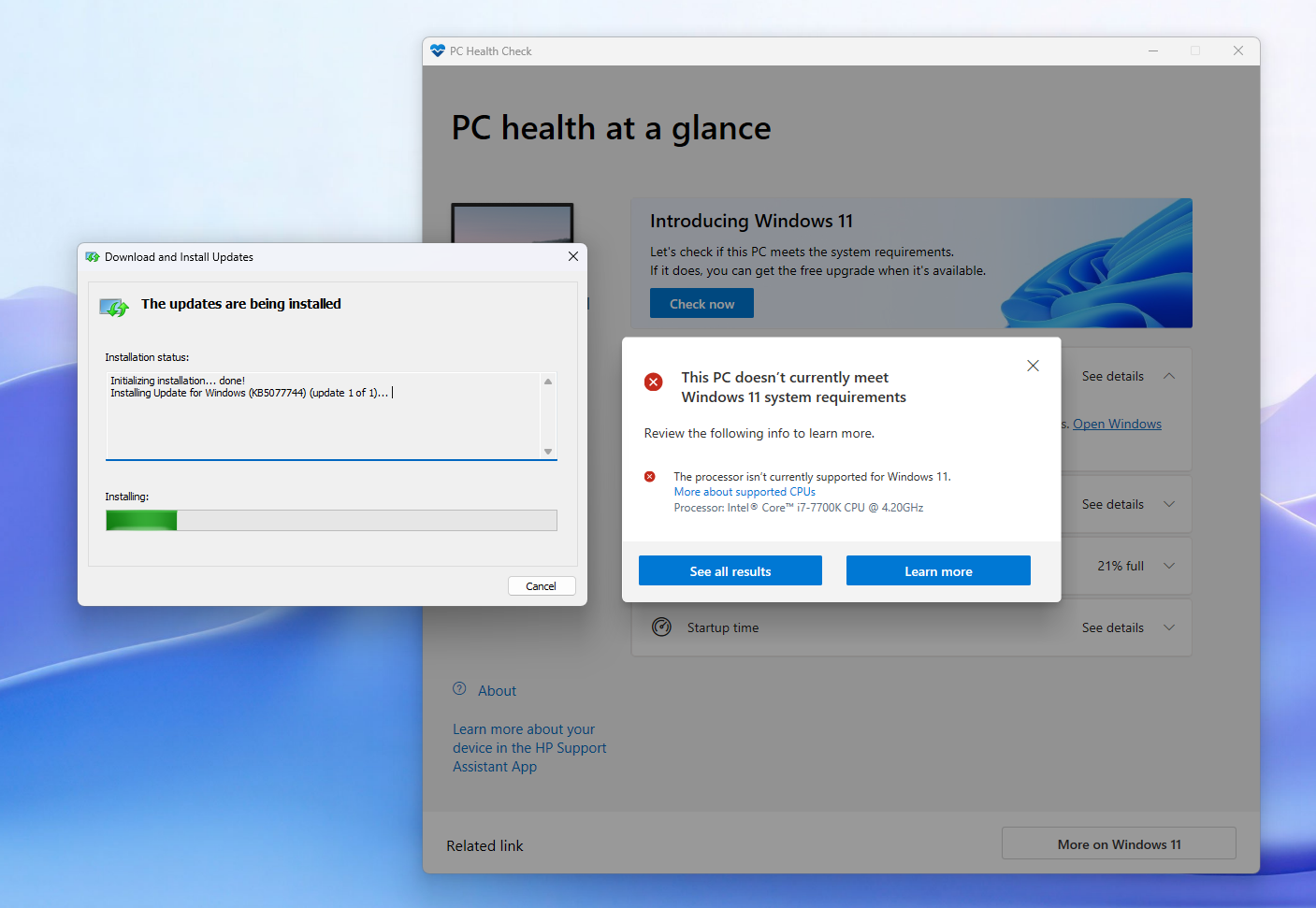
“Something went wrong” when trying any update on Unsupported Windows 11, and then it rolls back the update.?
On unsupported Windows 11 systems, this usually happens when the update doesn’t match your exact build (23H2 / 24H2) or when the bypass registry script was not reapplied before updating.
During the update process, Windows performs another hardware check (CPU / TPM / Secure Boot) and rolls back if the bypass is missing.
Check your Windows 11 build first, download the correct KB, then re-run the same registry script used for the unsupported install and try again.
Download Bypasser Registry Script 1
Download Bypasser Registry Script 2
Script 1 Source: https://github.com/AveYo/MediaCreationTool.bat/tree/main/bypass11
Script 2 Source: https://github.com/builtbybel/FlyOOBE/releases/tag/2.4.854
📌 Tip from Tips2Fix:
If Windows Update is paused on your system, temporarily enable it and install the emergency patch — then resume updates if needed.
Wallpaper Source
Abstract Soft Blue And Purple Waves [1920×1080]
byu/FerdalKrmn inwallpaper
