
If your WiFi signal is weak in certain areas of your home, a WiFi range extender is the perfect solution. In this guide, you’ll learn step-by-step how to setup and full configure a WiFi Range extender using 3 different methods.
This tutorial works with most brands, including TP-Link, Netgear, D-Link, and others.
What is a WiFi Range Extender?
A WiFi extender helps boost your wireless signal to areas where your router cannot reach effectively.
Common situations:
- Router on the first floor → weak signal upstairs
- Dead zones in bedrooms or offices
👉 The extender repeats your WiFi signal and creates a stronger connection.
Step 1: Plug in Your WiFi Extender
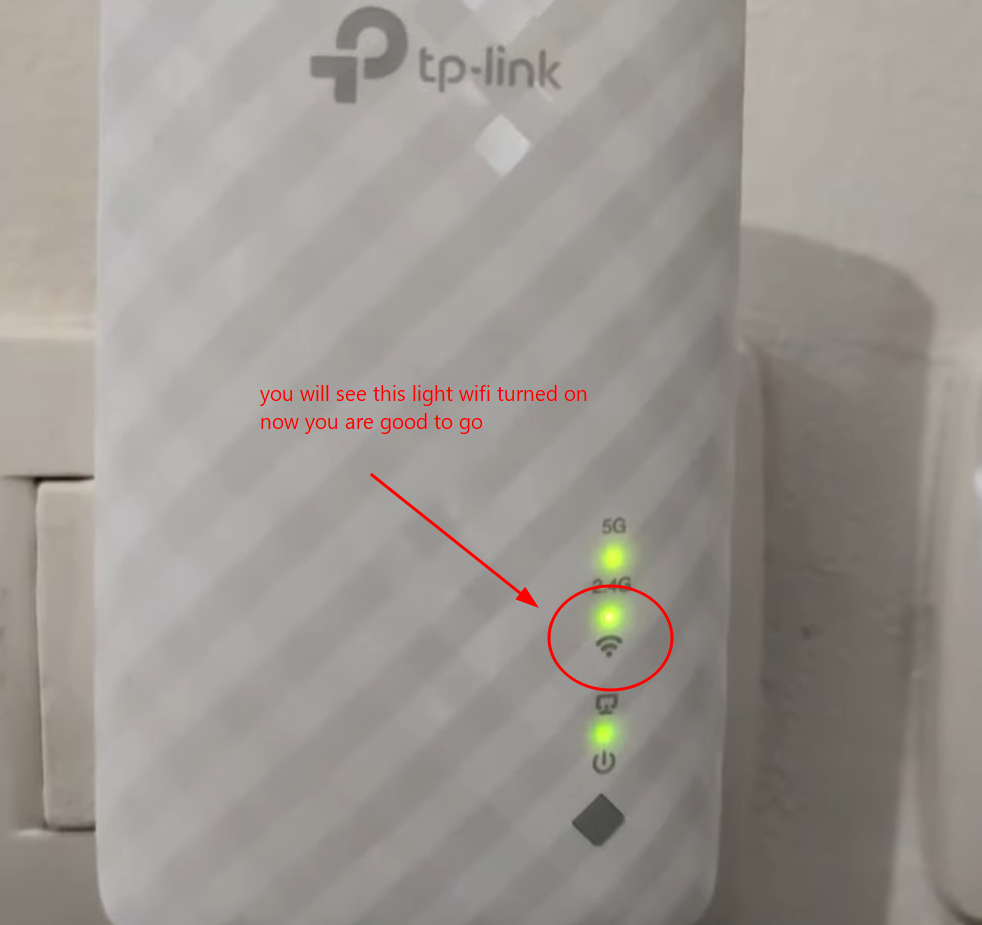
- Plug the WiFi extender into a wall socket
- Wait for the LED light to start blinking
- This means the device is ready for setup
Method 1: Setup via Browser (Laptop/PC)
Step 1: Connect to Extender WiFi
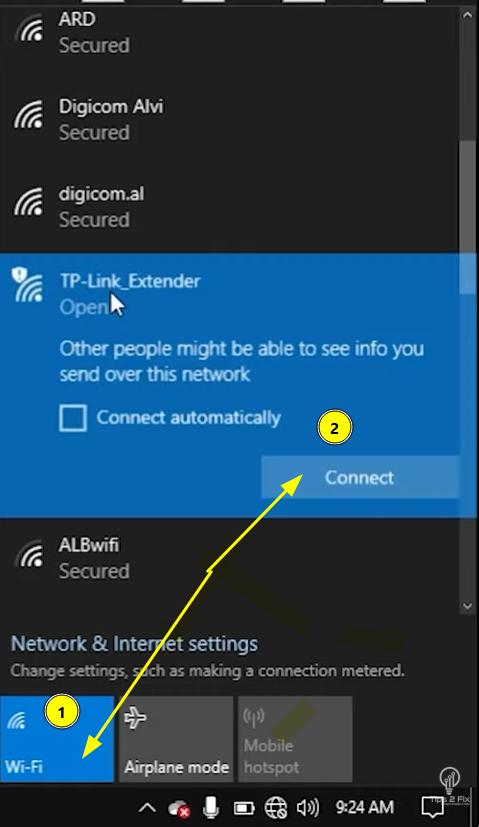
- Open WiFi settings on your laptop
- Connect to the extender network (example: TP-Link_Extender)
Step 2: Access Setup Page
- Open your browser
- Find the Default Gateway IP from network details
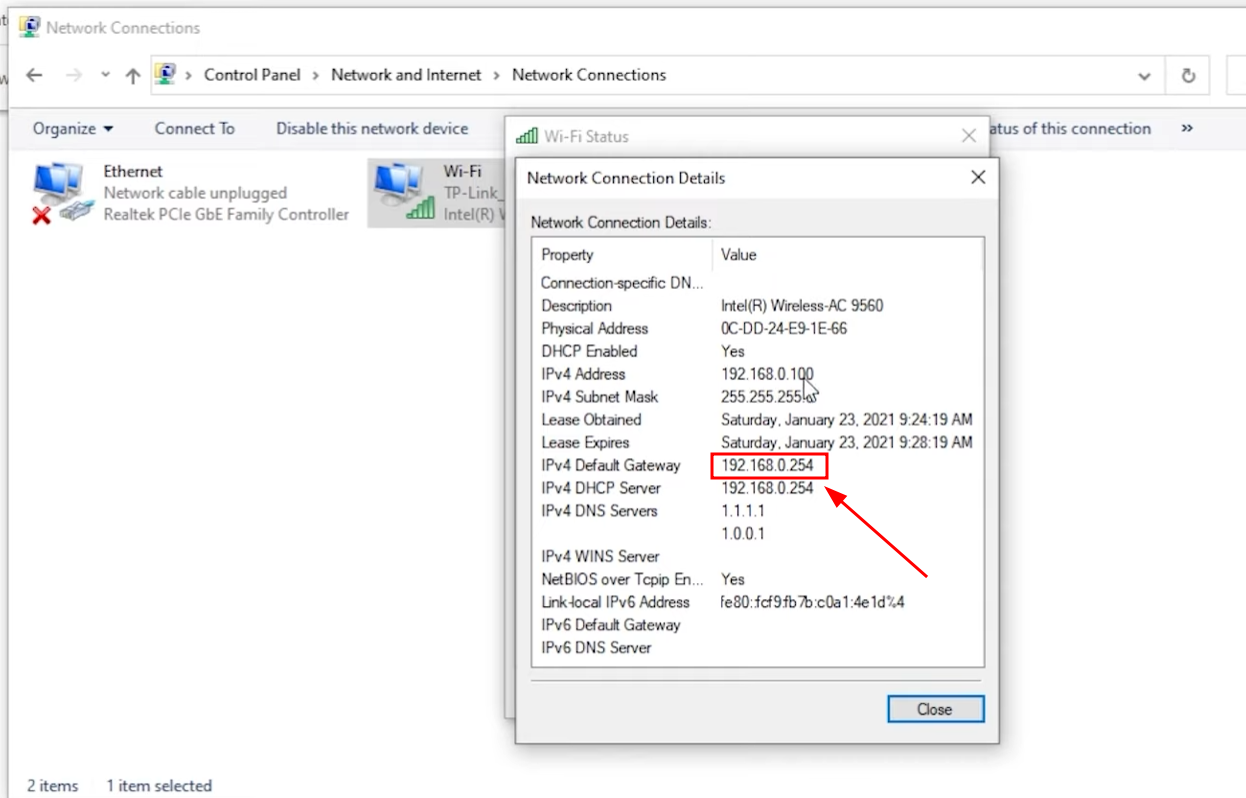
- Usually something like:
192.168.0.254
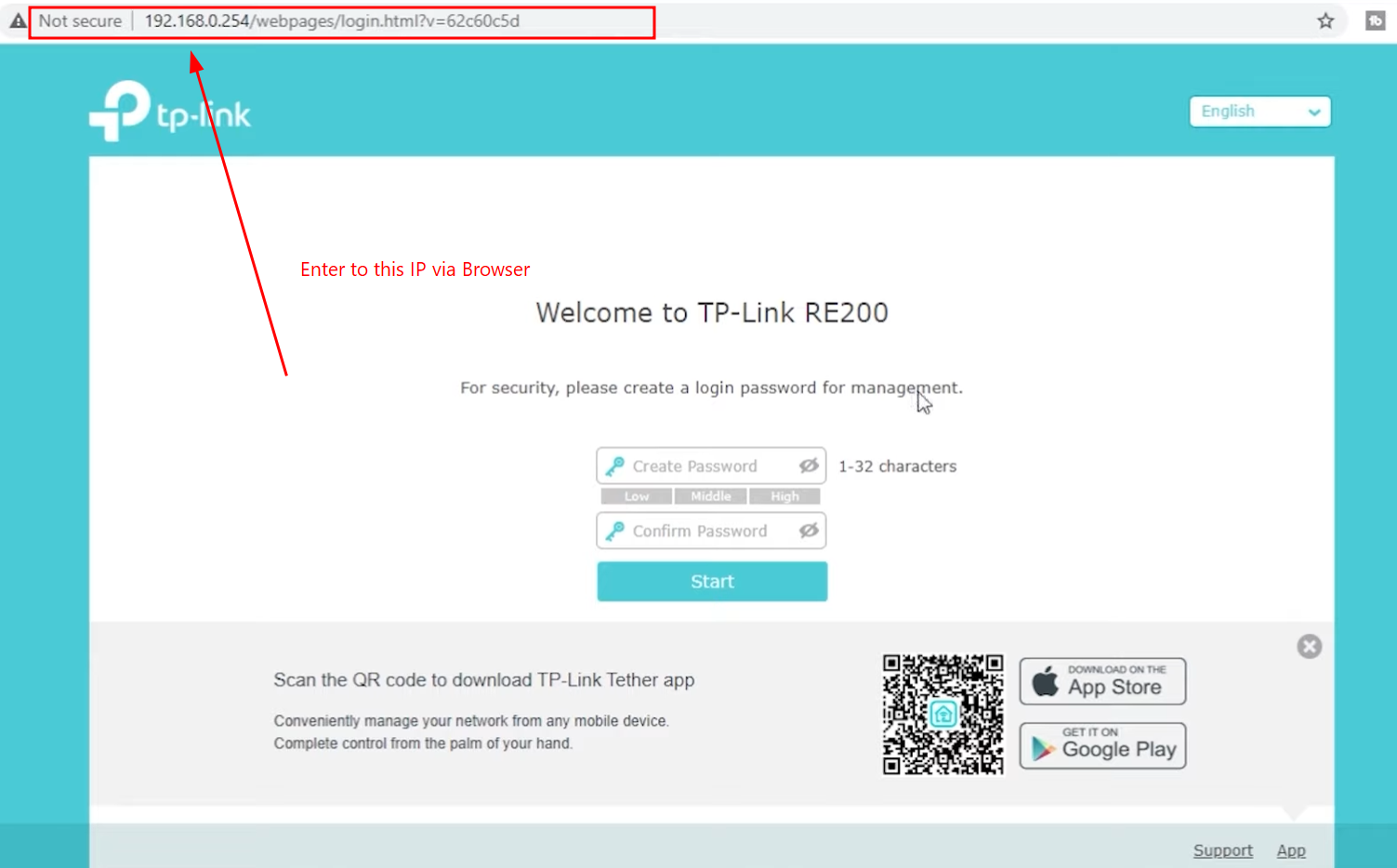
- Enter it in the browser
Step 3: Create Login Password
- Set a password for the extender admin panel
- Click Start
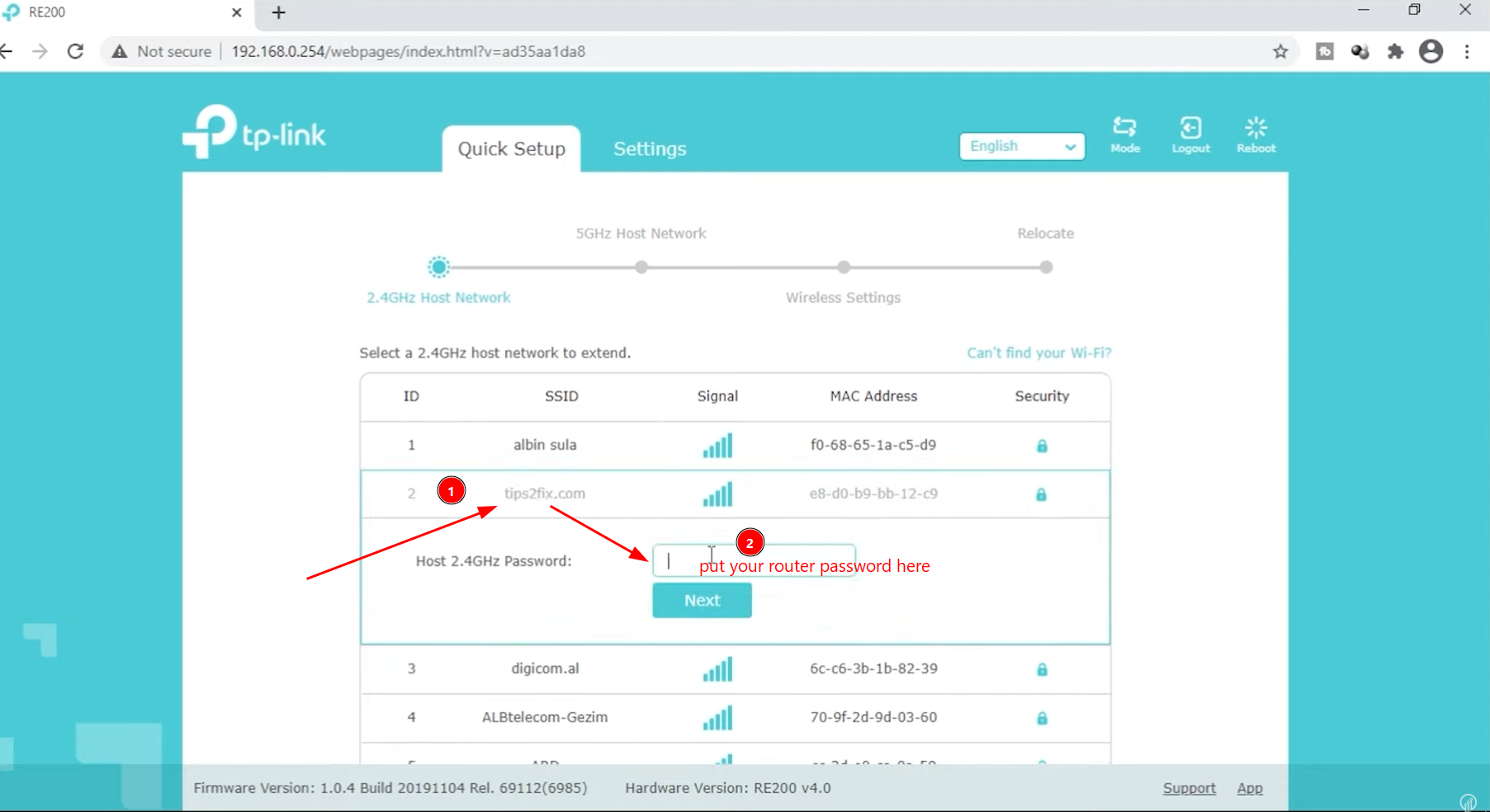
Step 4: Connect to Your Main WiFi
- Select your home WiFi network
- Enter your WiFi password
- (Optional) Select 5GHz network if available
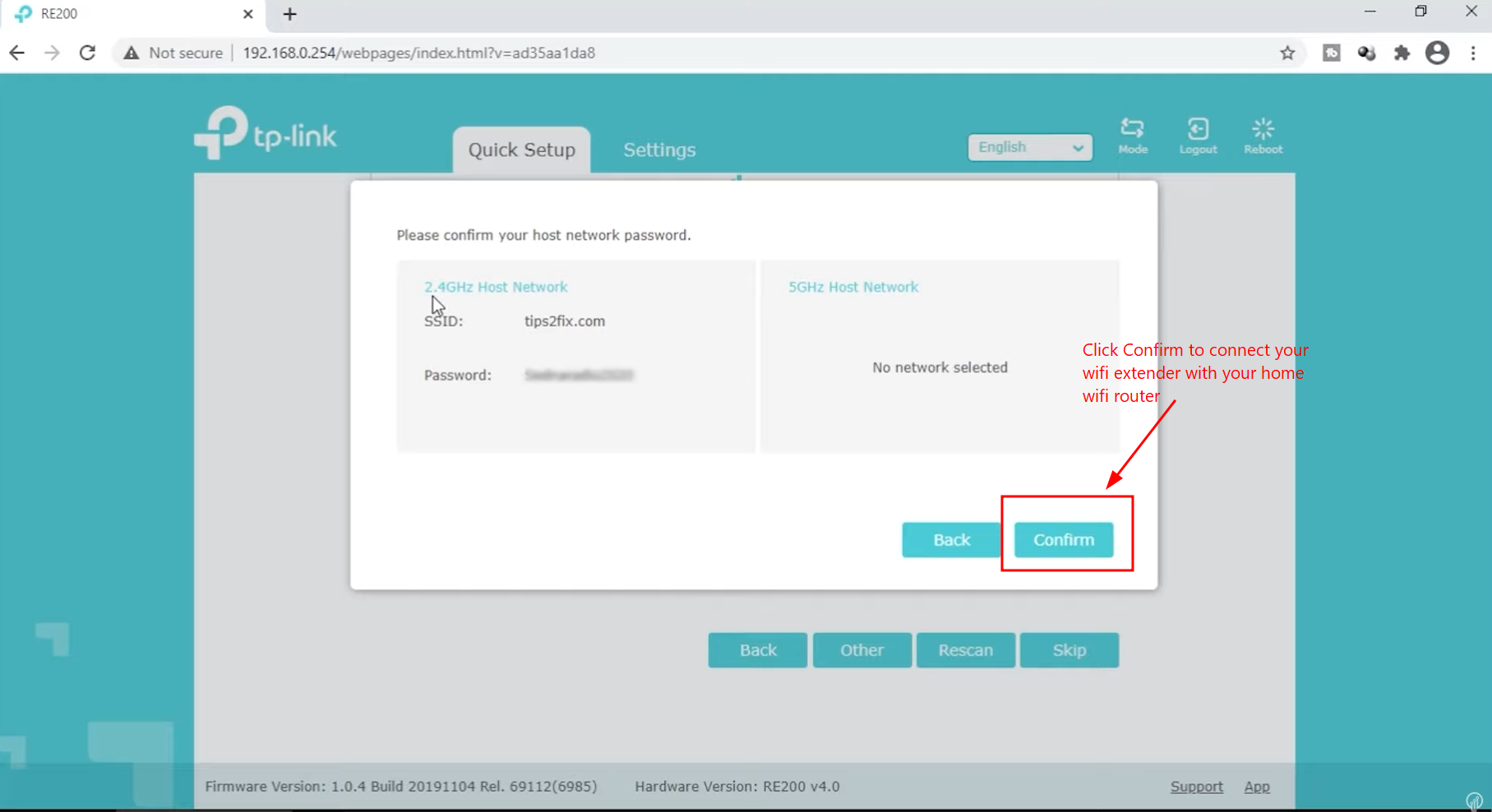
Step 5: Finish Setup
- Click Next / Confirm
- Wait for reboot
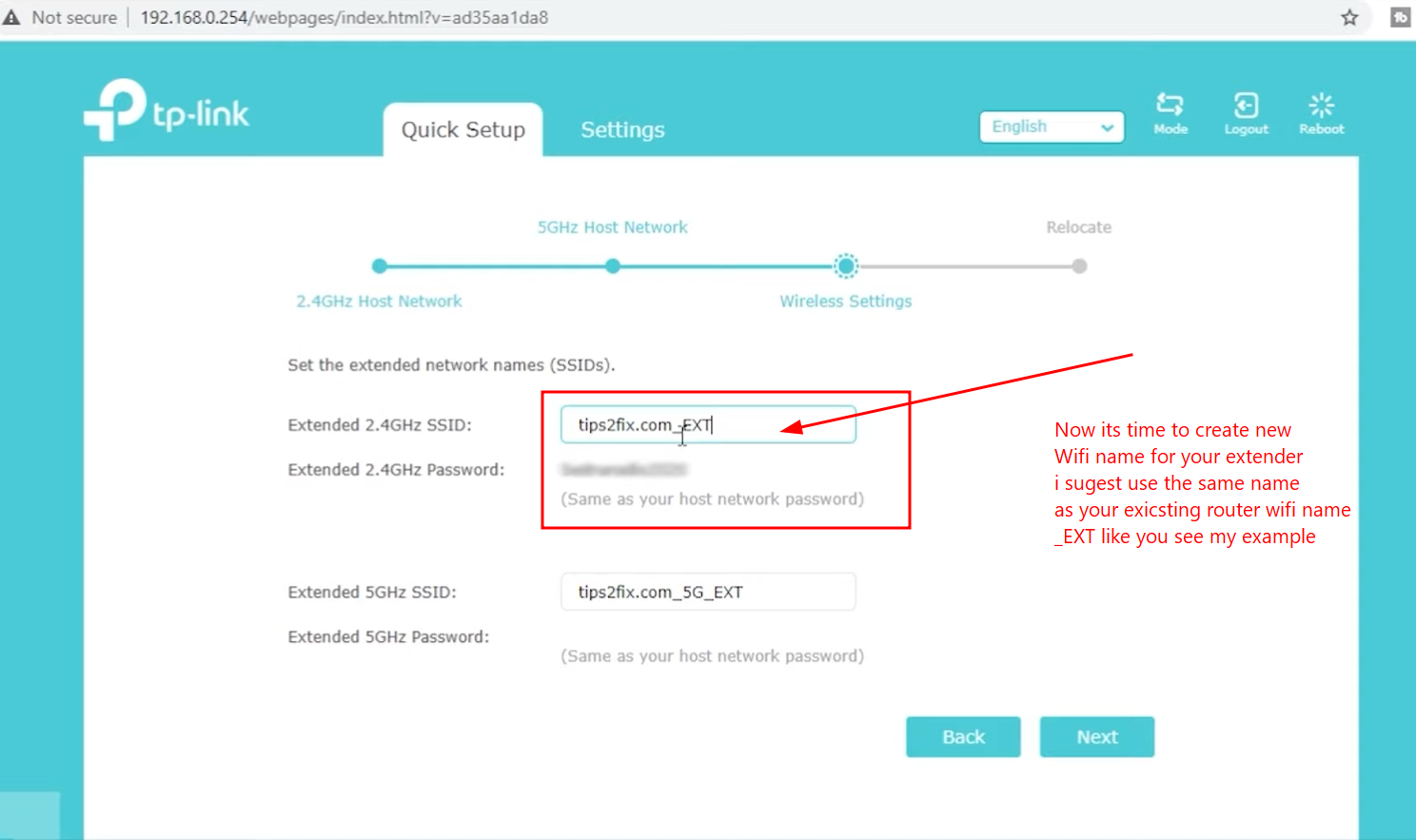
Result:
You will now see:
- YourWiFi_EXT
- YourWiFi_5G_EXT
👉 Same password as your main WiFi
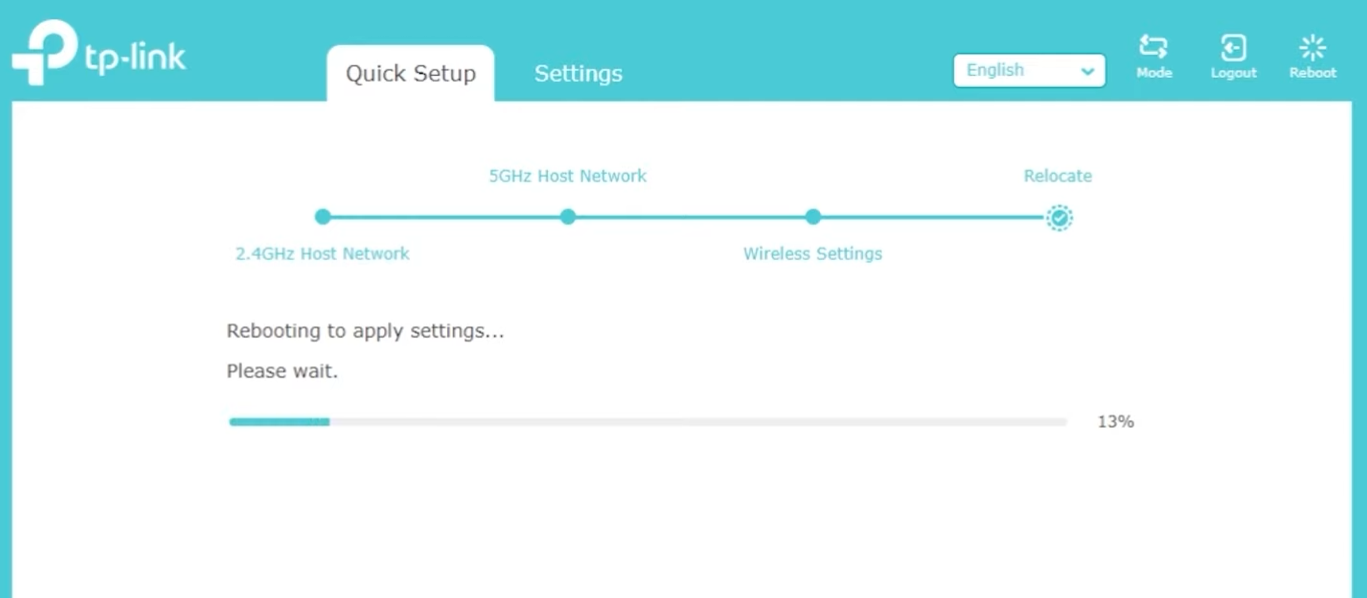
Device will Restart
And you are Done – Enjoy
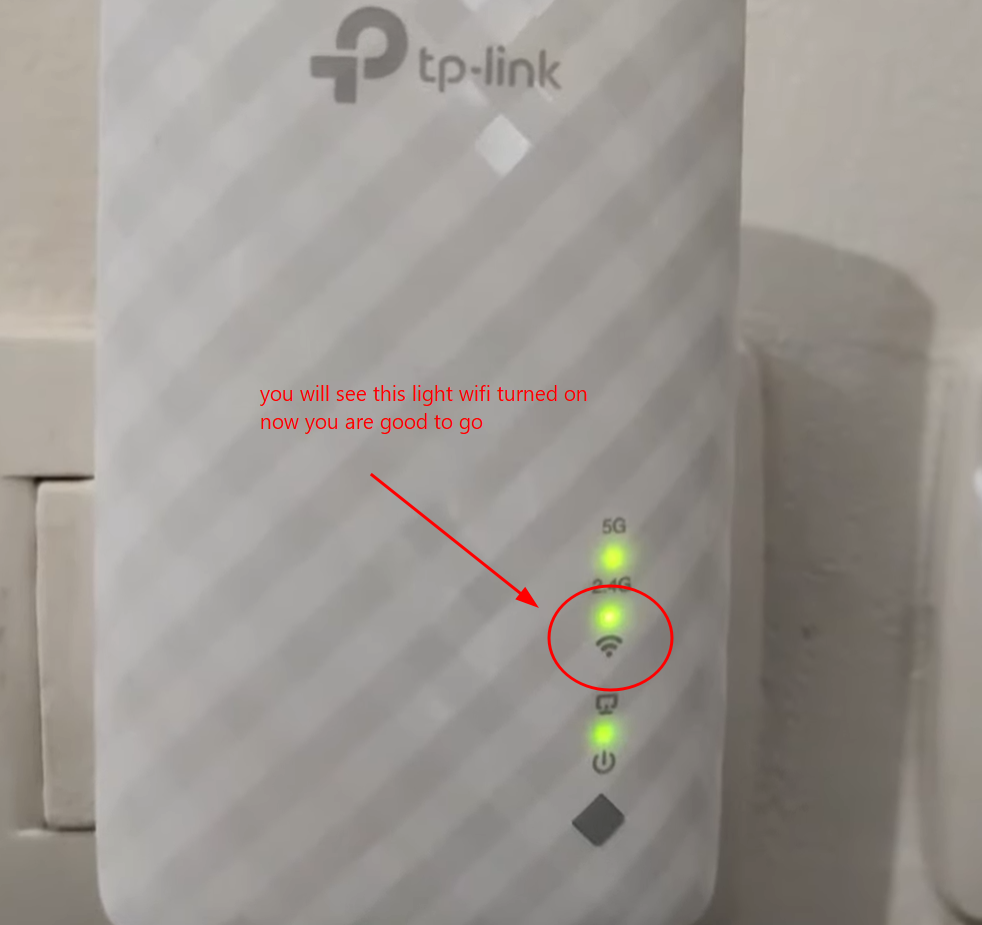
How to reset WiFi range extender?
- Pres Reset button (Once or for 3 seconds)
- you will see the red light to wifi blinking light
Method 2: Setup via Mobile App
Step 1: Install App
- Go to Play Store / App Store
- Search for your extender app (example: TP-Link Tether)
Step 2: Create Account
- Register with email
- Verify your account
Step 3: Connect to Extender
- Go to phone WiFi settings
- Connect to extender network
- Open the app
Step 4: Detect Device
- Tap Refresh
- Select your extender device
Step 5: Configure
- Create device password
- Select your home WiFi
- Enter WiFi password
- Click Apply
Done!
- Extender is configured
- Same WiFi password as your router
Method 3: Setup using WPS Button (Fastest)
Step 1: Press WPS on Router
- Find WPS button on your router
- Press it once
Step 2: Press WPS on Extender
- Press WPS on extender
- Both devices will start blinking
Step 3: Wait ~2 Minutes
- Devices will sync automatically
- LED becomes solid (not blinking)
Done!
- Extender is now connected
- No password setup needed
How to Connect to Extended Network
On your phone or PC:
- Look for:
- YourWiFi_EXT
- YourWiFi_5G_EXT
👉 Use the same password as your router
How to Reset the Extender
If something goes wrong:
- Press the Reset button
- Hold for a few seconds
- Device will restart
Pro Tips
- Place extender midway between router and weak area
- Avoid walls and interference
- Use 5GHz for speed, 2.4GHz for range
Conclusion
Now you know 3 powerful methods to setup a WiFi extender:
✔ Browser method (most control)
✔ App method (easy for beginners)
✔ WPS method (fastest)
