
Windows 11 KB5083631 preview update is now available, introducing Xbox Mode, faster startup performance, File Explorer improvements, and direct download links (MSU).
Microsoft released this optional non-security update on April 30, 2026, making it one of the most feature-packed updates of the year. It is available for both Windows 11 versions 24H2 and 25H2, upgrading systems to Build 26100.8328 and Build 26200.8328 respectively.
To learn more about the differences between security updates, optional preview updates, out-of-band (OOB) updates, and continuous innovation, refer to the: Microsoft Blog
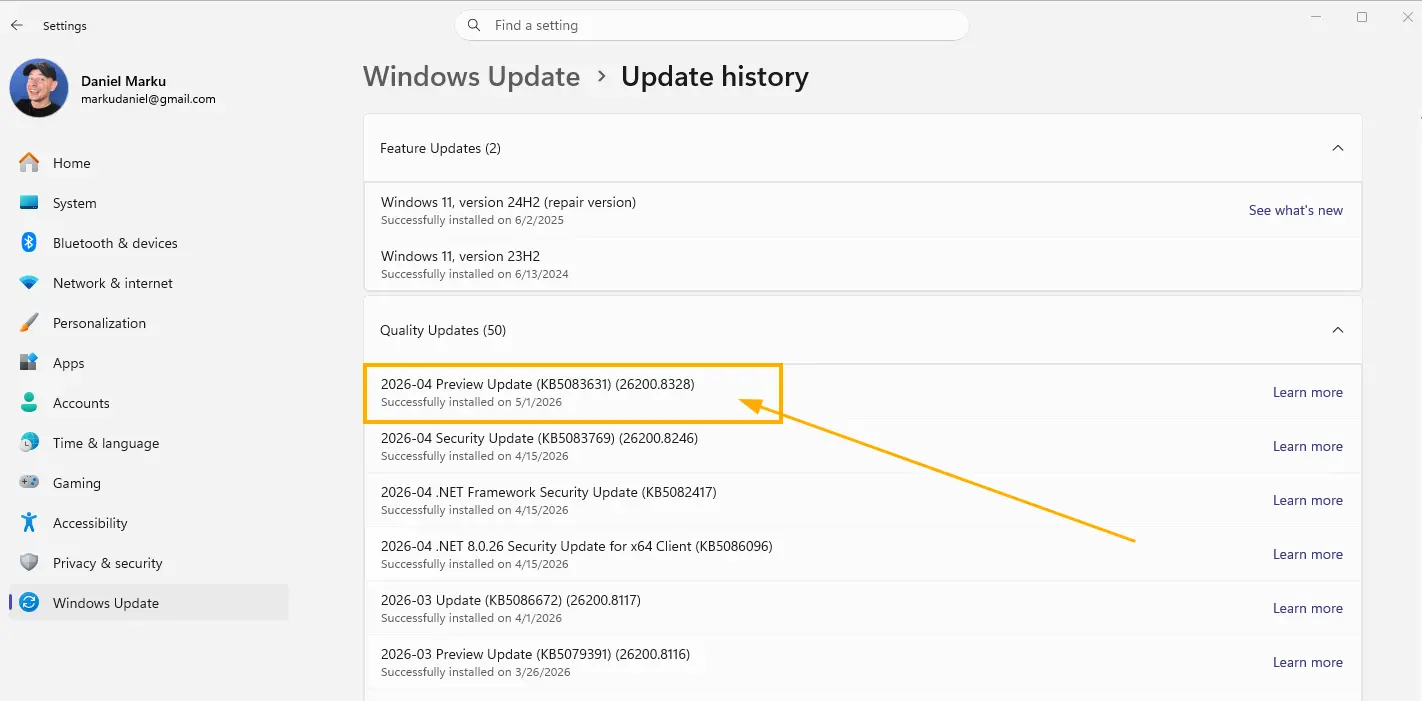
The update introduces Xbox Mode, Haptic Feedback, major File Explorer reliability improvements, AI Agents on Taskbar, and a long list of performance enhancements. However, many users have noticed that some of the most exciting features — like Xbox Mode and Haptic Feedback — don’t appear automatically after installation. That’s because Microsoft is rolling them out gradually.
This update brings the system to:
KB5083631 focuses on performance improvements, gaming experience enhancements, and system stability.
Since this is a preview update, it will not install automatically unless you manually choose to install it.
In this complete tutorial, we’ll cover everything new in KB5083631 and walk you through how to manually enable both Xbox Mode and Haptic Feedback using ViVeTool.
Part 1: What’s New in Windows 11 KB5083631
Gaming: Xbox Mode
(Full-Screen Gaming Experience)
One of the most interesting additions is the new Xbox-style full-screen experience.
The headline feature is the brand-new Xbox Mode, a full-screen, controller-first interface available on all Windows 11 PCs (laptops, desktops, and tablets). Inspired by the Xbox console experience, it minimizes background distractions and puts your games front and center. You can launch it from the Xbox app, Game Bar settings, or by pressing Windows + F11.
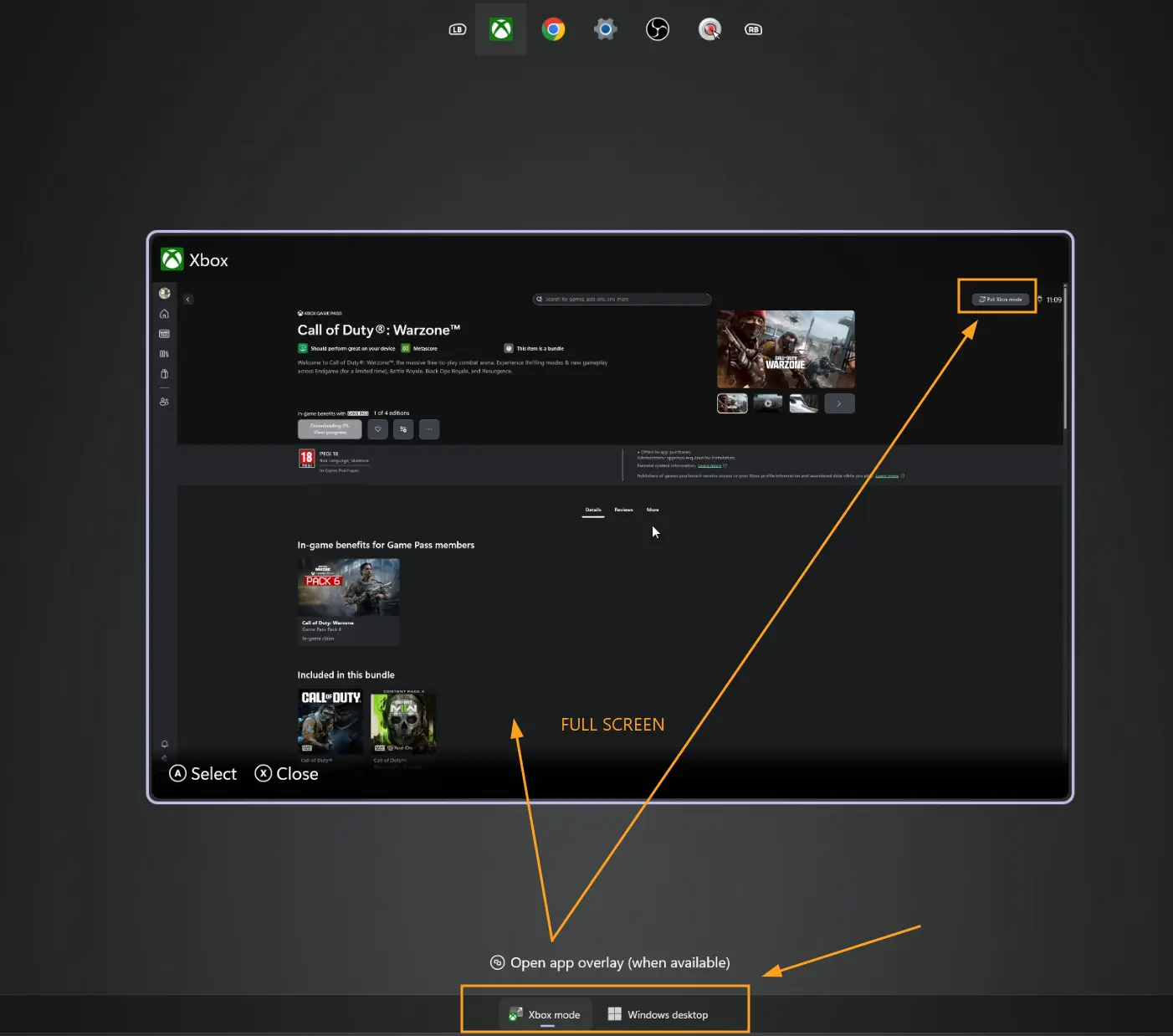
This feature is designed to:
- Provide a console-like UI
- Improve gaming focus
- Reduce background activity
- Work better with controllers
File Explorer Improvements
KB5083631 brings several long-awaited fixes to File Explorer:
- The annoying white flash bug in dark mode when opening “This PC” or resizing the Details pane is finally gone.
- Support for new archive formats:
,,, and NuGet Packages (.nupkg). - View and Sort preferences are now preserved when apps launch File Explorer directly to folders like Downloads or Documents.
- Enhanced explorer.exe reliability — processes now properly close after windows are shut, freeing up memory.
Memory Usage Optimization (Delivery Optimization)
A fix has been applied to Delivery Optimization, which previously could use excessive RAM.
- Better memory management
- Reduced background resource usage
Haptic Feedback Engine
A brand-new haptic feedback system delivers subtle vibrations during certain UI actions like snapping windows, resizing, or aligning objects in PowerPoint. Currently supported on Surface Slim Pen 2, ASUS Pen 3.0, MSI Pen 2, and select mice like the Logitech MX Master
You’ll also feel haptic feedback when aligning objects in PowerPoint.
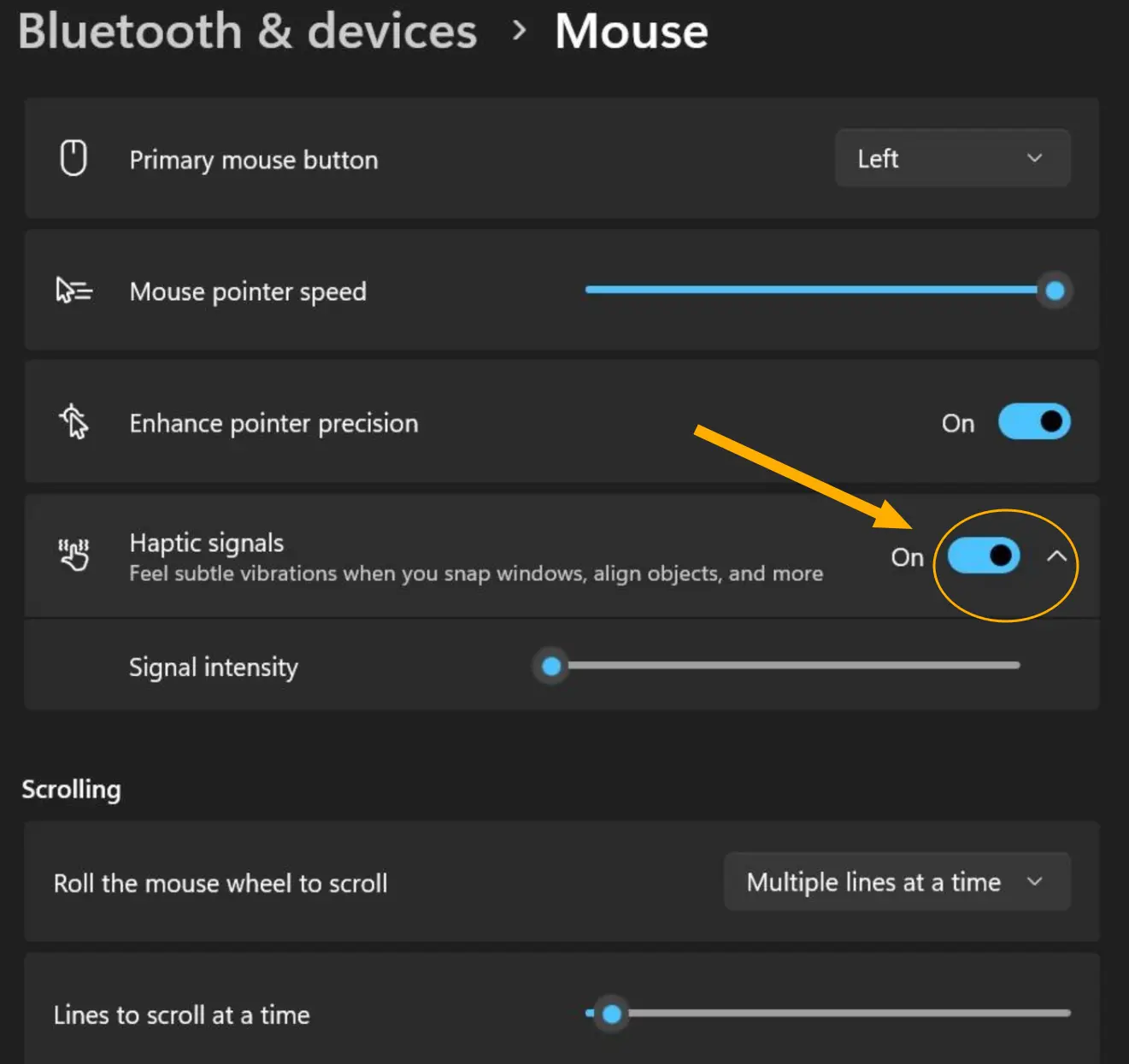
You can manage these new haptic features in Settings > Bluetooth & devices > Mouse or Touchpad > Haptic signals.
How to Install KB5083631 (Windows Update)
- Open Settings
- Go to Windows Update
- Click Check for updates
- Look for:
KB5083631 (Optional Update) - Click Download & Install
Download KB5083631 (Manual Install MSU Files)
If you prefer offline installation, you can download the update manually from Microsoft Update Catalog.
Step-by-step:
- Open the Microsoft Update Catalog
- Search for: KB5083631
- Choose the correct version (x64 / ARM64)
- Download the .MSU file
- Double-click to install
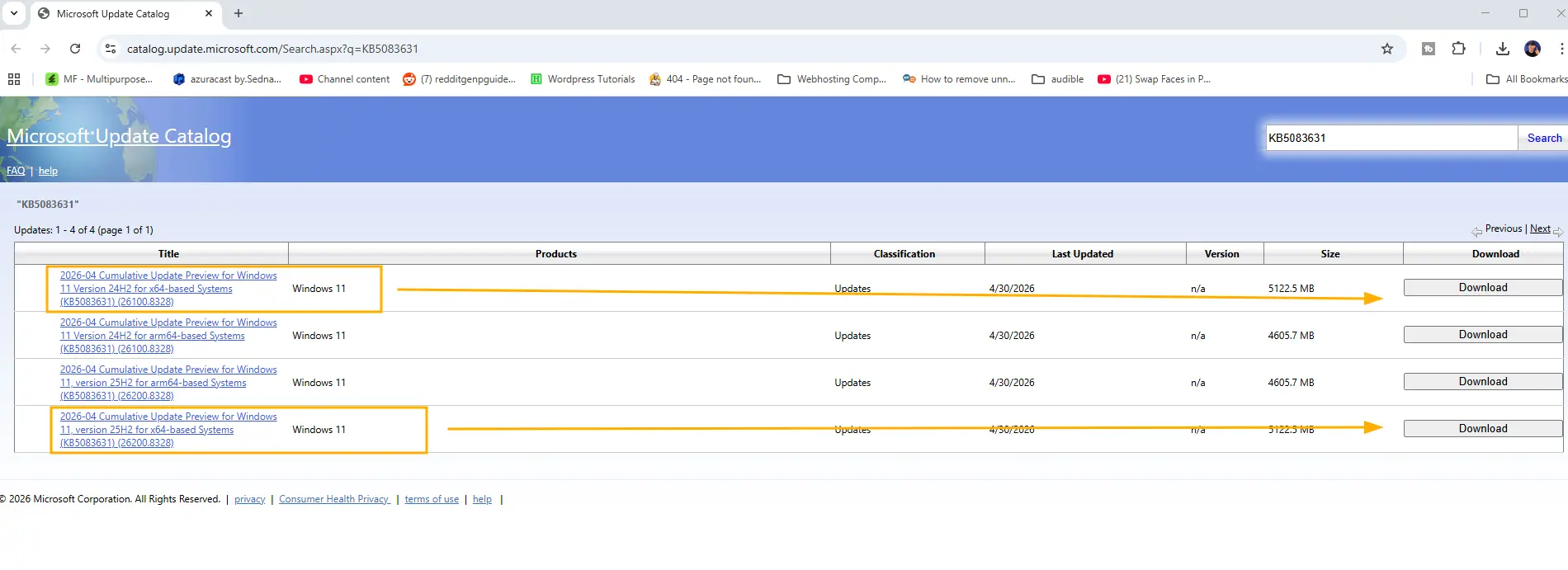
Direct link to Microsfot catalog search:
https://www.catalog.update.microsoft.com/Search.aspx?q=KB5083631
This button its linked directly with the link to forword you to micrsofot catalog!
Part 2: How to Enable Xbox Mode in Windows 11 (Step-by-Step)
If Xbox Mode isn’t appearing on your PC after installing KB5083631, don’t worry — Microsoft is rolling it out gradually, and rollout can take anywhere from a day to several weeks. Here’s how to force-enable it manually using ViVeTool.
⚠️ Disclaimer: ViVeTool is a third-party tool not officially supported by Microsoft. Use at your own risk and create a system restore point before proceeding.
Step 1: Confirm Your Windows Build
Press Windows + R, type , and press Enter. You should be on:
- Build 26100.8328 (Windows 11 24H2), or
- Build 26200.8328 (Windows 11 25H2)
If you’re on an older build, install KB5083631 first via Settings → Windows Update → Download and install.
Step 2: Download ViVeTool
- Visit the official GitHub releases page:
- Download the latest
file. - Make sure to chose the right version based on your processor , usually the first one Intel/Amd
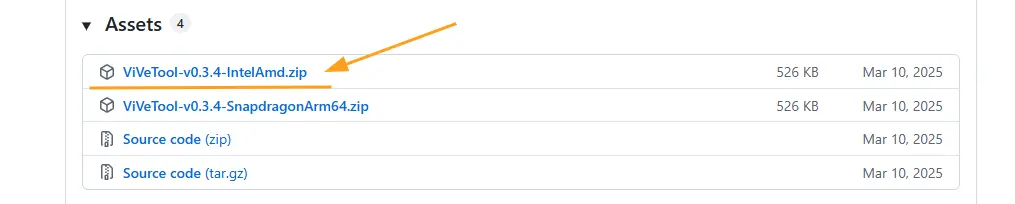 Download ViVe Tool
Step 3: Extract ViVeTool
- Right-click the downloaded ZIP file and select Extract All.
- Extract to an easy-to-remember location, for example:
. - Copy the folder path.
Step 4: Open Command Prompt as Administrator
- Press the Start button.
- Type
. - Right-click Command Prompt and select Run as administrator.
- Click Yes when prompted by UAC.
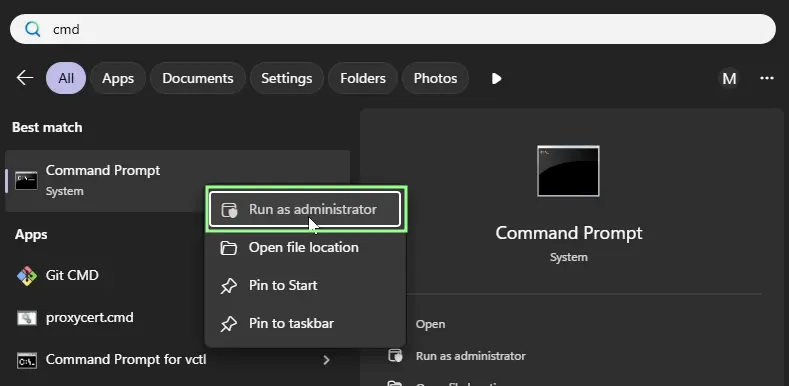
Step 5: Navigate to the ViVeTool Folder
In the Command Prompt, type:
cd C:\ViVeTool(Replace with your actual path if different.)
Step 6: Enable Xbox Mode
Run the following command:
vivetool /enable /id:59765208You should see a confirmation message: “Successfully set feature configuration(s)”.
For best results, also enable the main feature bundle for KB5083631:
vivetool /enable /id:58989070So how I applied the commands below, it will look the same as mine.
The ‘vive’ folder shown here is the same one used in the video—I just renamed it to ‘vive’ for simplicity. In the tutorial, it’s called ‘ViVeTool’.”
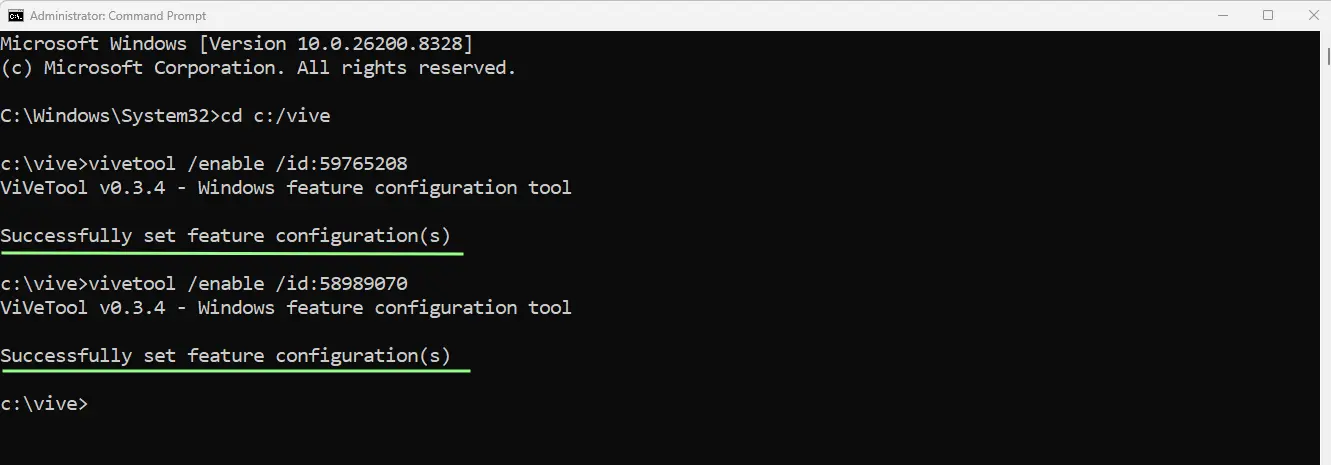
Step 7: Restart Your PC
Close all open applications and restart your computer for the changes to take effect.
Step 8: Activate Xbox Mode in Settings
After the restart:
- Open Settings (Windows + I).
- Go to Gaming → Xbox mode.
- Toggle Xbox mode to ON.
- (Optional) Enable Show Xbox mode in Task view to easily switch between desktop and gaming modes.
You can now enter Xbox Mode anytime by pressing Windows + F11.
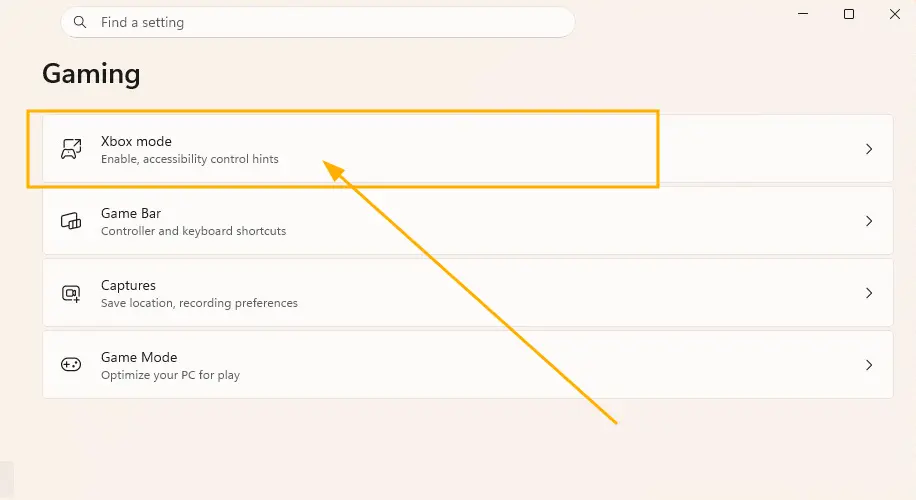
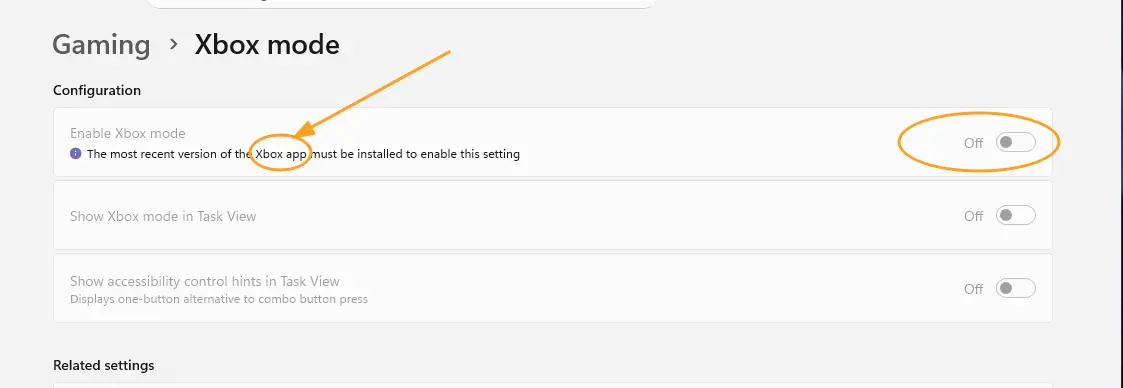
You will see this option to enable it:
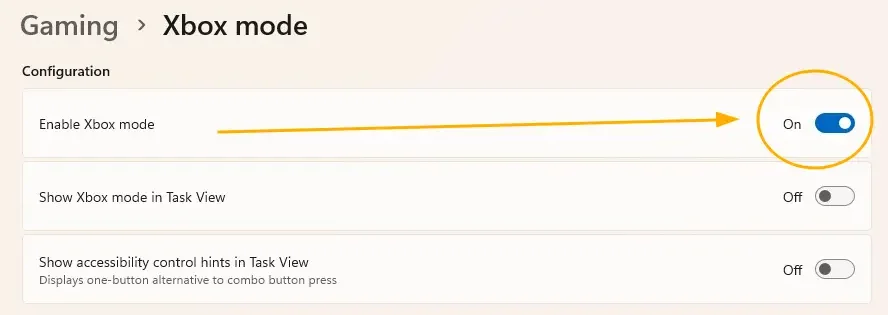
Troubleshooting Xbox Mode
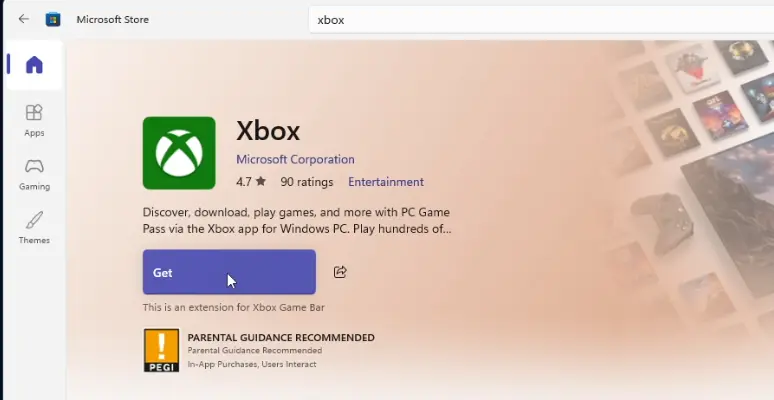
Make sure first to have xbox app installed in order for this option to work!
Install directly from Microsft Store , search for xbox and get:
If Xbox Mode still doesn’t appear after these steps, try these alternative ViVeTool IDs:
vivetool /enable /id:52580392vivetool /enable /id:50902630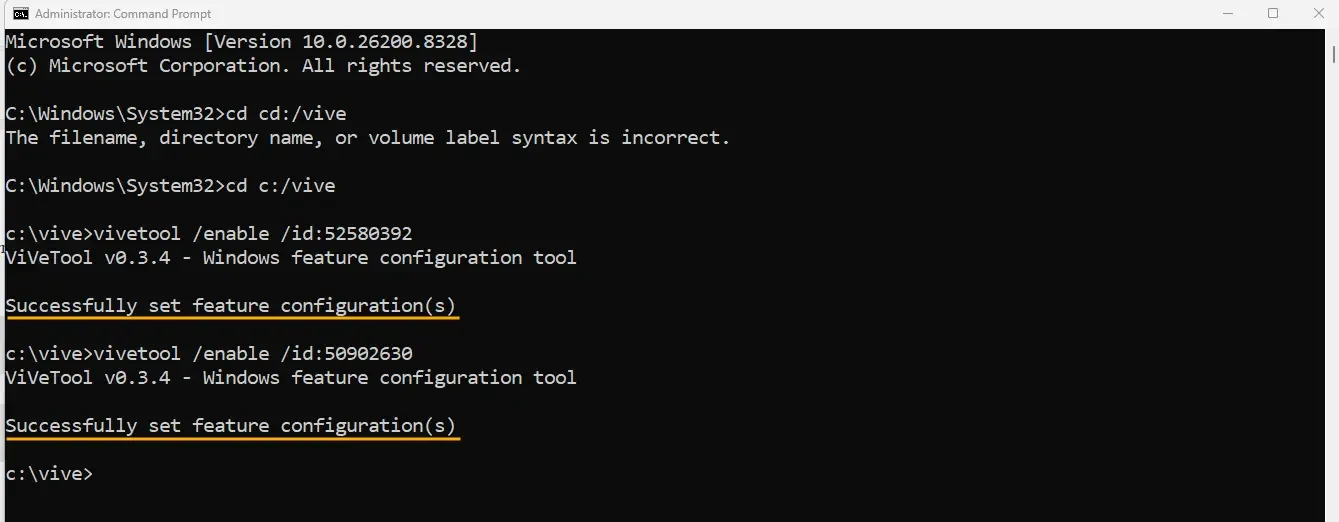
Restart again and check Settings.
Known Issues with Xbox Mode
Before fully committing to Xbox Mode, be aware of these limitations:
- Multi-monitor support is poor — secondary monitors may go blank when docked.
- Sleep/resume can be unreliable — hibernation works better than S3 sleep.
- Some features only work when on AC power (not battery).
How to Disable Xbox Mode!
To revert all changes:
vivetool /disable /id:59765208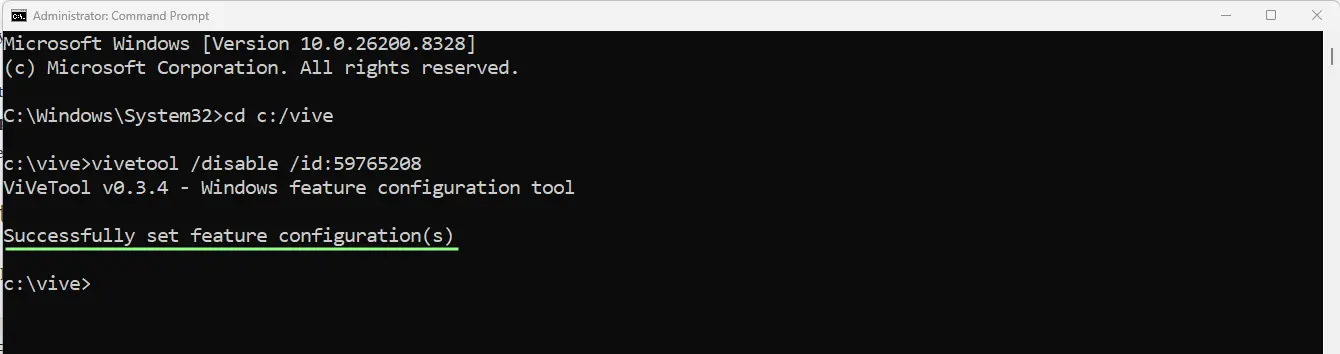
Restart your PC.
Done!
Part 3: How to Enable Haptic Feedback in Windows 11 (Step-by-Step)
Haptic Feedback in KB5083631 lets you feel subtle vibrations during specific UI actions like snapping windows, resizing, or aligning objects in PowerPoint. However,
this feature requires compatible hardware, without it, the settings won’t appear at all (and even if forced, won’t do anything).
Compatible Hardware
Currently, Haptic Feedback works with:
- Surface Slim Pen 2
- ASUS Pen 3.0
- MSI Pen 2
- Logitech MX Master 4
- Logitech G Pro X2 Superstrike
- Surface Laptop 7
- Surface Laptop Studio
- Recent ThinkPads with haptic touchpads
- Dell XPS Premium models
If your hardware isn’t on this list, the feature won’t function, but support for additional devices is being added through hardware partner firmware updates.
Step 1: Verify Hardware Compatibility
Check the manufacturer specifications for your mouse, pen, or touchpad. Look for the term “haptic feedback” or “haptic motor” in the product description.
Step 2: Install ViVeTool (If Not Already Installed)
Follow Steps 2–4 from the Xbox Mode tutorial above to download and set up ViVeTool.
Step 3: Open Command Prompt as Administrator
Open Command Prompt with administrator privileges and navigate to the ViVeTool folder:
cd C:\ViVeToolStep 4: Enable Haptic Feedback Settings
Run the following command to unlock the hidden Haptic Signals settings:
vivetool /enable /id:56784836,48433719,58536988,59100632You should see confirmation messages for each feature ID.
Step 5: Restart Your PC
Restart your computer for the new settings to appear.
Step 6: Configure Haptic Feedback in Settings
After the restart:
- Open Settings (Windows + I).
- Go to Bluetooth & devices.
- Click on Mouse, Touchpad, or Pen depending on your hardware.
- Look for the new Haptic signals section.
- Toggle Haptic signals to ON.
- Use the Signal intensity slider to adjust the vibration strength.
Step 7: Test It Out
Try the following actions to feel the haptic response:
- Snap a window to one side of the screen using Windows + Arrow keys.
- Resize a window by dragging its edges.
- Open PowerPoint and align objects on a slide.
Troubleshooting Haptic Feedback
- Settings don’t appear? Your hardware likely isn’t compatible. Check your device specifications.
- Toggle is on but nothing happens? Update your device firmware (especially for Logitech MX Master 4 — check Logitech G HUB or Options+ for updates).
- Feature stopped working after a Windows update? Re-run the ViVeTool command, since updates can sometimes reset feature flags.
How to Disable Haptic Feedback
To revert:
vivetool /disable /id:56784836,48433719,58536988,59100632Restart your PC.
Didnt fixed yet ?
The Windows 11 KB5083631 update is one of the most significant preview updates of 2026, bringing massive quality-of-life improvements alongside forward-looking features like Xbox Mode, Haptic Feedback, and AI Agents on Taskbar. While Microsoft’s gradual rollout strategy means many users won’t see the new features immediately, ViVeTool makes it easy to unlock them right away.
Just remember:
- Xbox Mode works on virtually any PC but has multi-monitor and sleep limitations.
- Haptic Feedback requires specific compatible hardware to function.
- Always create a restore point before using ViVeTool.
Download the registry key that im using in the video to fix it:
Download Enable Haptic Feedback Reg ConclusionFrequently Asked Questions (FAQ)
Q: Is KB5083631 a mandatory update? A: No. It’s an optional preview (non-security) update. You must manually click “Download and install” in Windows Update to get it.
Q: Can I install KB5083631 on Windows 10? A: No. This update is exclusive to Windows 11 versions 24H2 and 25H2.
Q: Will ViVeTool damage my system? A: ViVeTool is a trusted open-source tool widely used by the Windows community, but it’s not officially supported by Microsoft. Always create a system restore point before using it.
Q: How long does the gradual rollout take? A: According to Microsoft, anywhere from a day to several weeks, depending on your device.
Q: Will my Logitech MX Master 4 work with Haptic Feedback right away? A: Possibly. Make sure your firmware is updated via Logitech G HUB or Options+. Some users have reported it working in the Release Preview channel.

I followed each exact steps including the troubleshoot section, but it still does not show up 🙁