
Windows 11 26H2, the Windows 11 2026 Update, started rolling out on September 29, 2026. Short version: if your PC is fully updated, you will not see a new Windows after the restart. You get a fresh support clock, a few security upgrades, and features that may have been switched off on your machine until now.
In this post I break down what actually changed, what is new on the security side, how the system requirements evolved since 23H2, how long each version is supported, and how to get 26H2 today, including on PCs Microsoft calls “unsupported”.
Tips2Fix Windows 11 26H2 Installer
A guided tool that upgrades older PCs to Windows 11 26H2, step by step. It asks before it changes anything and writes a log of everything it does.
DAED8F5068B9670CE01F6E7BBA46A0DEB9D8CC3C94BE5F7BC2E85FEBCCCC127D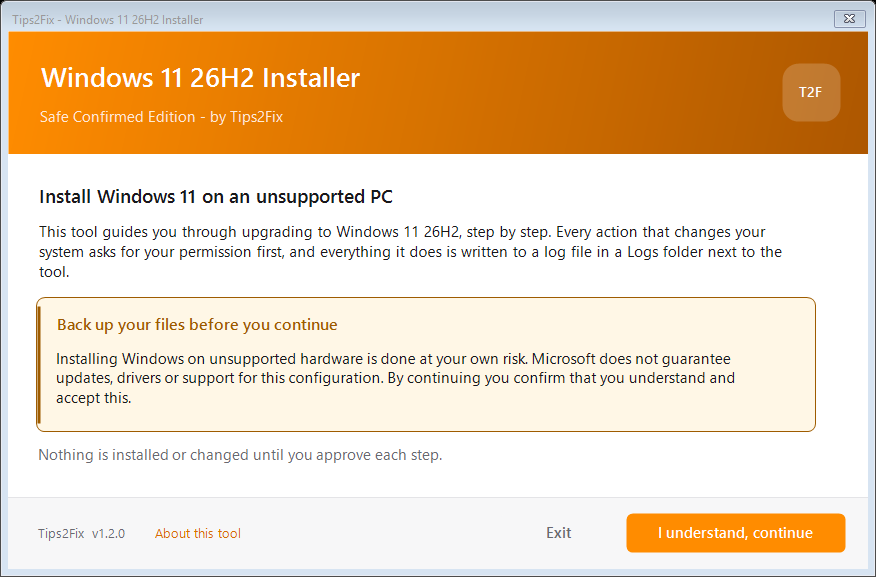
Installing Windows on unsupported hardware is done at your own risk. Back up your files first. Microsoft does not guarantee updates or support for such a PC.
What actually changed in 26H2
Almost nothing under the hood, and that is on purpose. Windows 11 24H2, 25H2 and 26H2 are built from the same code and share the same system files. Microsoft calls this a shared servicing branch: one codebase, several version labels.
That is why 26H2 arrives on 24H2 and 25H2 PCs as an enablement package (KB5121794). It is a tiny switch that turns on features already delivered through monthly updates, and it needs only one restart. On a fully patched PC the download is around 174 KB.
What that means for you:
- No exclusive features. Anything “new” in 26H2 is also coming to 25H2 and 24H2 while they are supported.
- Same bugs, same fixes. A bug on 25H2 will not vanish by moving to 26H2, and one patch fixes both.
- Features may turn on. Things you were waiting for through gradual rollouts get enabled: the taskbar can sit at the top or on the sides, the Start menu has a scrollable All list with category and grid views, and Windows can index your frequently used folders (Settings > Privacy & security > Search).
- Small quality-of-life upgrades that arrived during the year: Search that handles typos in app names, a preview of search results, AI actions in File Explorer for supported images, better Bluetooth LE Audio reliability, and Magnifier and Narrator improvements.
- Fewer restarts. Windows Update now installs eligible updates together with the monthly security update when possible.
- WMIC is gone. The old
wmiccommand-line tool is no longer available on 24H2 and later, so update any scripts that still use it (switch to PowerShellGet-CimInstance).
Security: what is new and safer
The biggest security win is simply staying supported: 26H2 keeps you on monthly patches until 2028. On top of that, these changes are part of the release (Microsoft’s IT pro notes):
| Feature | What it does | On by default? |
|---|---|---|
| Smart App Control toggle | You can now turn Smart App Control on or off without a clean Windows install | Your choice |
| Passkeys in credential managers | Third-party password managers can store passkeys, and you can set a PIN for security keys | Yes |
| Windows Hello ESS for external sensors | Enhanced Sign-in Security now works with compatible USB fingerprint readers, not just built-in ones | Yes, on supported hardware |
| Driver trust changes | Default trust for cross-signed drivers is removed. Drivers from the Windows Hardware Compatibility Program and a list of trusted legacy drivers stay allowed | Audited first, then enforced |
| Post-quantum cryptography | API support for the NIST ML-KEM and ML-DSA algorithms, for developers | For apps |
| Administrator protection | Admin tasks run with just-in-time elevation in a separate profile, so malware cannot silently reuse your admin rights | No (Intune or Group Policy) |
| Built-in Sysmon | Microsoft’s Sysmon monitoring tool now ships inside Windows and logs to Event Viewer | No |
For home users, Smart App Control and better passkey support are the practical wins. Administrator protection is the most interesting change, but you will only see it on managed PCs for now.
The real reason 26H2 exists: support
If you are on 24H2 Home or Pro, this is the part that matters. Your version stops getting security updates on October 13, 2026, two weeks after 26H2 launched. Installing 26H2 resets the clock: 24 months for Home and Pro, 36 months for Enterprise and Education.
| Version | Home & Pro support ends | Enterprise & Education support ends |
|---|---|---|
| Windows 11 26H2 | October 9, 2028 | October 8, 2029 |
| Windows 11 25H2 | October 12, 2027 | October 10, 2028 |
| Windows 11 24H2 | October 13, 2026 | October 12, 2027 |
If you are on 25H2, you have another year, but there is no reason to wait since the upgrade is a single restart.
System requirements: 23H2 vs 24H2 vs 25H2 vs 26H2
The official minimums have not changed since Windows 11 launched. The real change came with 24H2, which needs CPU instructions that no registry trick can fake. Since then, 25H2 and 26H2 added nothing new for hardware.
| Requirement | 23H2 | 24H2 | 25H2 | 26H2 |
|---|---|---|---|---|
| CPU | 1 GHz, 2+ cores, 64-bit, on Microsoft’s supported list | Same | Same | Same |
| CPU instructions (SSE4.2 + POPCNT) | Not needed | Required, cannot be bypassed | Required | Required |
| RAM / storage | 4 GB / 64 GB | Same | Same | Same |
| TPM 2.0 | Required (bypassable) | Same | Same | Same |
| UEFI + Secure Boot capable | Required (bypassable) | Same | Same | Same |
| Graphics / display | DirectX 12, WDDM 2.0 / 720p, 9″+ | Same | Same | Same |
| Local account during setup | Shortcuts work | Shortcuts work | Microsoft keeps closing them | Same as 25H2: use an unattend file or a tool such as Rufus |
| Upgrade method | Full upgrade | Full upgrade from 23H2 | Enablement package from 24H2 | Enablement package from 24H2 or 25H2 |
| AI features (Copilot+) | Not available | Optional: 40+ TOPS NPU, 16 GB RAM, 256 GB SSD | Same | Same |
TPM, Secure Boot and the CPU list can still be bypassed on every version, which is what my tool does. SSE4.2 and POPCNT cannot. If your CPU lacks them (Core 2 Duo, Athlon 64, Phenom II era), 23H2 is the last Windows 11 version it can run. Check in CPU-Z: if SSE4.2 is listed, you are fine. The tool also checks this for you before it changes anything.
How to install Windows 11 26H2
Pick the path that matches what you are running today:
Method 1: Upgrade from Windows 10 or Windows 11 23H2 (ISO)
- Download and start the Tips2Fix installer
Extract the ZIP and double-click
Run-Installer.bat. It asks for administrator permission, then shows the welcome screen. Read the “About this tool” page if you want to know exactly what it does. - Look at the “Your system” screen
The tool reads your Windows version, edition, language and hardware. It lists anything below Microsoft’s minimum and says that it will tell Setup to skip those checks.
- Choose “Install from a Windows 11 ISO”
The tool suggests this automatically when you are on Windows 10 or 23H2.
- Download the official ISO in the same language and edition
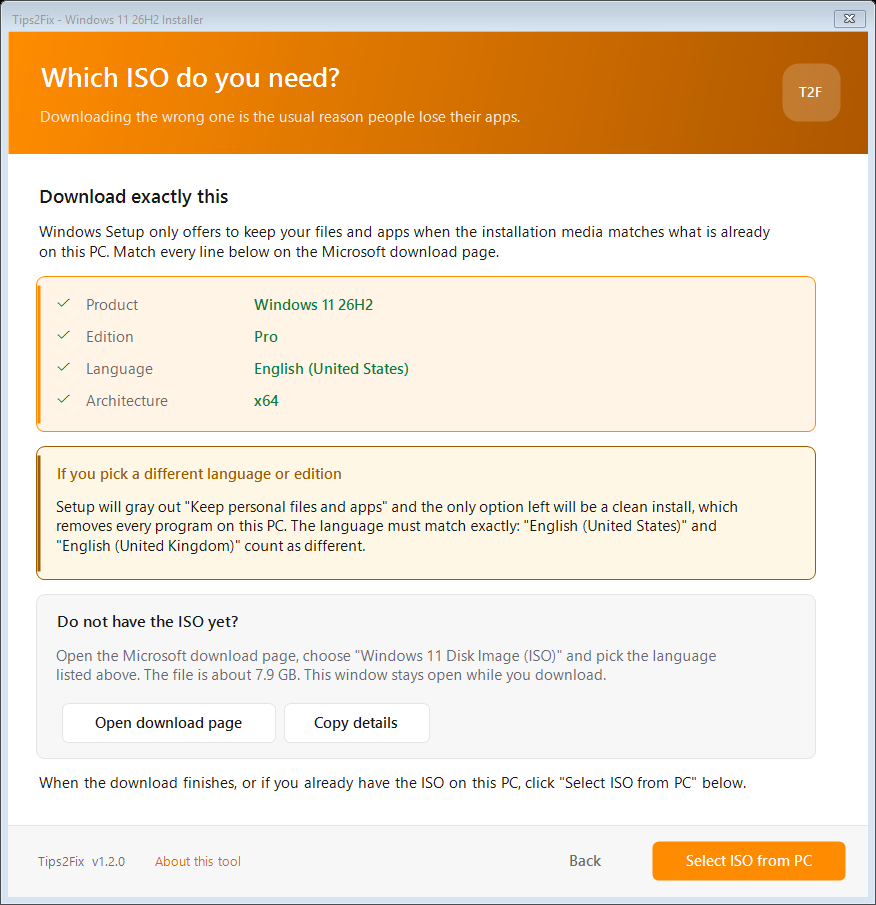
The tool shows a checklist with your product, edition, language and architecture. Match every line on Microsoft’s page. A different language or edition grays out “Keep personal files and apps”, and the only option left removes your programs. “English (United States)” and “English (United Kingdom)” count as different languages.
- Select the ISO from your PC
Click “Select ISO from PC”. The tool mounts the ISO and checks that its language, edition and architecture match your installation, and that you have enough free space.
- Approve the bypass and start Setup
The tool asks before it writes the compatibility values that make Setup skip the TPM, Secure Boot, RAM, storage and processor checks. After you approve, it starts Windows Setup from the ISO. Choose Keep personal files and apps before you click Install. Your PC restarts several times.
If you prefer the command line, mount the ISO, open Command Prompt as administrator, replace E: with the drive letter of your mounted ISO, and run:
E:
cd \sources
setupprep.exe /product server
Setup then shows an “Install Windows Server” heading even though you are using Windows 11 media. That is expected and does not mean you downloaded a Server ISO. It is not a Microsoft-supported method, and its behavior can change between releases.
Watch the “keep files” option. With this command Setup can gray out Keep personal files and apps, and then the only choice left is a clean install that removes your programs. If you need to keep your files, use the tool’s method above instead. It sets the compatibility values in the registry first, and that is what keeps the option available.
The patcher also works on its own. Bypass-Requirements.cmd can apply the bypass, remove it, or show its current status, and it asks for administrator permission when it needs it.
Method 2: Fast update from Windows 11 24H2 or 25H2 (enablement package)
First check Settings > Windows Update for the 26H2 feature update. Microsoft rolls it out gradually and may apply compatibility holds, so not seeing it yet does not always mean your PC needs a bypass.
- Run the tool and choose the fast update
The tool reads your hardware again and confirms SSE4.2 support. Choose Fast update (enablement package). It checks whether the required update KB5120998 is already on your PC.
- Install the required update KB5120998 if the tool says it is missing
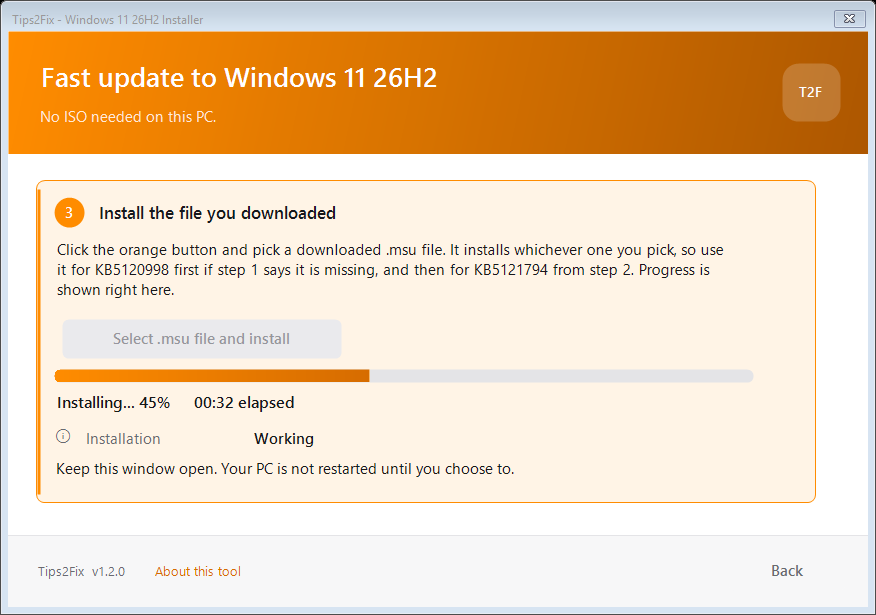
Download it, click “Select .msu file and install” in the tool and pick the file. Restart when it finishes, then run the tool again.
- Install the 26H2 enablement package KB5121794
Download the file for your PC, pick it in the tool and install it the same way.
- Choose how to install, then restart
You can use Microsoft’s own installer window, or the background method with a percentage bar. When it finishes, restart, then open Settings > System > About or run
winver. It should say 26H2.
These files come straight from Microsoft’s servers. Save them to a normal folder such as Downloads, not OneDrive. Big files in OneDrive are sometimes left unfinished, and Windows then refuses them with a signature error. The tool checks the file against Microsoft’s fingerprint in the file name and warns you before it installs a damaged one.
On a supported PC with 24H2 or 25H2
- Install the latest updates
Open Settings > Windows Update and install everything that is waiting. Windows needs a recent cumulative update before the enablement package applies.
- Turn on early updates
Turn on Get the latest updates as soon as they are available.
- Check for updates
When Windows 11, version 26H2 appears, click Download and install, then restart.
- Confirm it worked
Settings > System > About should show version 26H2.
Not showing up? The rollout is phased, so it may just not be your turn yet. Microsoft can also place a safeguard hold on PCs with known compatibility issues.
PCs that shipped with Windows 11 26H1 (such as Snapdragon X2 machines) run a different core and cannot move to 26H2. Microsoft says they will get a path to a future release.
Optional update: KB5124010 for the taskbar position
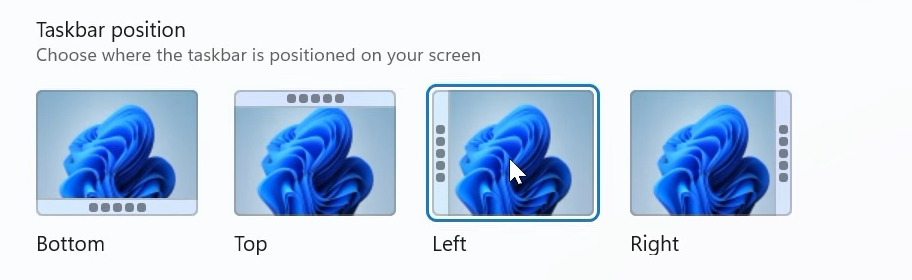
After upgrading to Windows 11 26H2, check Windows Update for KB5124010 (OS Build 26300.9550). On my test PC, the Taskbar position option appeared after installing this update. It lets you move the taskbar to the top, left, right, or bottom of the screen.
You find it under Settings > Personalization > Taskbar > Taskbar behaviors > Taskbar position. I show it at 12:22 in the video.
If the update does not show up in Windows Update, download it manually from the official Microsoft Update Catalog. Pick the package that matches your Windows version and architecture.
Microsoft rolls out some features gradually, so availability can differ from PC to PC. Open Settings > Windows Update > Update history and check that KB5124010 is installed.
Known issues and who should wait
Microsoft’s 26H2 release health page lists three issues, all marked as mitigated at launch:
- USB audio devices: some USB Audio Class 1.0 devices may show Code 10 or produce no sound. It started with the September 8 update, so it is not specific to 26H2.
- Domain-joined PCs: some machines protected by Credential Guard can lose their trust relationship with an on-premises Active Directory domain, because 26H2 honors Machine Identity Isolation settings that only work with Windows Server 2025 domain controllers.
- Black screen after sign-in: seen mainly on Azure Virtual Desktop hosts that use FSLogix.
Home users can upgrade without worry. If you manage domain-joined PCs or virtual desktops, test on a few machines first.
Should you install it?
It is a one-restart update, it brings no new hardware requirements for PCs already on 24H2 or 25H2, and it keeps you patched until October 2028. If you are on 24H2 Home or Pro, do it before October 13.
FAQ
Will 26H2 make my PC slower?
Do I need to reinstall Windows?
Can I go back?
Is it safe on an unsupported PC?
Will I still get Windows updates?
Does the tool send anything to the internet?
Watch the full tutorial
I walk through every upgrade path step by step, from Windows 10 and from 24H2 or 25H2 on unsupported PCs, in the video below.
Stuck? Drop your Windows version and the error you are seeing in the comments and I will help.
Sources





Download the Tips2Fix 26H2 Installer = 404 Page Not Found
Where is the script link
Thanks , i have the dreaded 0xc00007b on some of my games, and i have tried everything. Even the games i remeber that ran before fine, are giving the same error, so i have definetly messed it up somewhere.
I was on 24h2 on an incompatible laptop, i7 6th gen. and the famous github did not support adding more versions.
Now i have followed this and with 2 small files, its so hard to believe i have updated to 26h2. however my issue did not resolve, while on 24h2 i had the ability to reset the pc using windows ( online) it is disabled on this version . i am guessing something in the script triggered windows to not show these options. would be nice if you could investigate, i shall now manually reset the windows, or use the usb method for fresh installation because i am certain these 2 tiny files, cannot be windows update from 24h2 to 26h2.